
First of all, is there such a thing as a computer mouse built for AI? I mean, our use of AIs like GPT, Grok, Claude, and the myriads of other tools out there are getting longer and more frequent.
We are not just clicking a few buttons anymore. We are reading long AI answers, selecting bits of text, asking follow-up questions, copying things into documents, comparing two versions, scrolling through research, and editing whatever the AI gives us. Sometimes that means spending hours at the computer with one hand on the mouse.
So yes, there are mice with dedicated AI buttons. But the best mouse for AI use is not necessarily the one with the biggest AI sticker on the box. A comfortable shape, a good scroll wheel, easy button customization, and reliable switching between devices can matter much more.
What Should an AI Mouse Actually Do?
Before buying, think about the AI actions you repeat most often. A useful AI setup might include shortcuts for…
- Scrolling through long AI conversations
- Copying selected text and pasting it without formatting
- Opening your preferred AI assistant
- Starting voice input
- Summarizing selected text
- Moving between a chat and a document
- Running a text expansion shortcut such as a saved prompt
The last one is easy to overlook. A mouse cannot improve a vague prompt by itself, but it can make a well designed prompt easier to reuse. If you often ask an AI to rewrite text in a certain tone, extract information into a fixed format, or check a document against a checklist, a button that inserts that prompt can save real time. So, does a mouse actually exist to perform this frequent function?
Also, do check what the mouse software does with your text – for those mice that come with one. Their AI features may send selected text or prompts to an online server. That is not automatically a problem, but you should know what is being shared before using the feature with private work, customer information, or confidential documents.
So, without further ado, here are the mice I would look at, depending on how you actually use AI. Some comes with a software, some don’t. Let’s dig into them.
Logitech Signature AI Edition M750 – For People Who Just Want an AI Shortcut Button
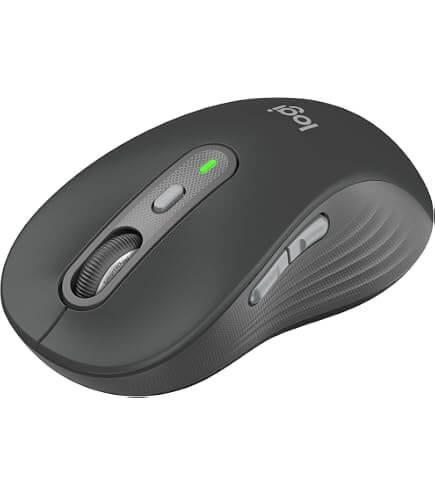
The Signature AI Edition M750 is the most obvious answer to the “is there an AI mouse?” question. It has a dedicated button that opens Logitech’s AI Prompt Builder, plus another shortcut button for ChatGPT. You do need to install the Logi Options+ program for this to work. The software can help paraphrase or summarize text, draft replies, and write emails.
That sounds useful, but there is an important catch – the mouse is mainly built around Logitech’s Prompt Builder and ChatGPT. It is not a universal “talk to any AI” button. If your daily tool is Claude, Gemini, Grok, or a company chatbot, you may end up remapping the button or opening that service another way.
Still, this mouse makes sense for someone who is new to AI and wants a physical reminder that these tools are available. Pressing a button can feel easier than remembering a keyboard shortcut or searching through an app menu.
The M750 is also a simpler, lighter mouse than the larger productivity mice in this category. It uses a replaceable AA battery rather than a rechargeable battery, and it supports Bluetooth along with a USB receiver.
My honest opinion? Buy it for the comfortable shape and convenient shortcuts first. Treat the AI button as a bonus. If the AI software changes or you switch services later, you will not want the whole purchase to depend on one branded feature.
Good for: casual AI users who want a simple ChatGPT shortcut and do not need a large ergonomic mouse.
Rotary Mouse – The AI Scrolling Specialist
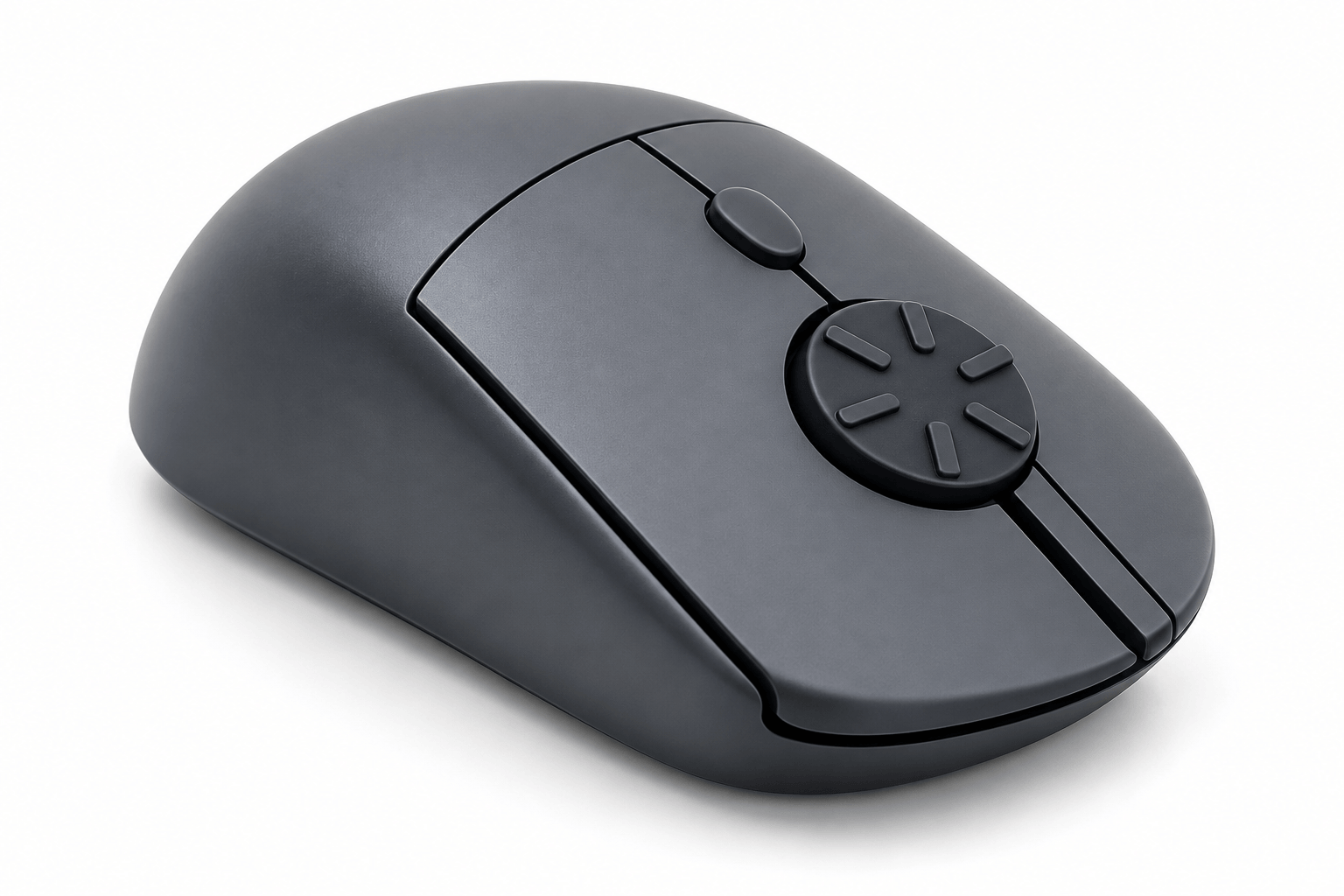
When I created the Rotary Mouse, I never imagined that it could be useful for this AI era. What struck me was how quick I could scroll through my long conversations with AI models. But it does use a unique approach to AI interaction. Instead of using a familiar up-and-down scroll wheel, it replaces that motion with a rotary dial that you turn like a small knob. That may sound strange at first, but it makes sense if you spend your day moving through long AI answers, research pages, documents, spreadsheets, or video timelines.
The rotary scroll wheel can scroll up to 2.5 times faster than a standard mouse wheel while still giving you tactile clicks for precision. It also supports regular vertical scrolling, so you do not have to abandon the old way of doing things.
For AI users, the appeal is easy to understand. Long conversations often involve a lot of scrolling up to check an earlier answer, then scrolling back down to continue working. A dial can make that movement feel less repetitive, especially when you are reading through large amounts of generated text. We are also positioning it as a jog-wheel replacement for tools such as DaVinci Resolve, Adobe Premiere Pro, and Final Cut Pro.
However, to keep things more neutral and less promotional, there are a few things to keep in mind. This Rotary Mouse is a new product and it may look odd to many at first, but most love the rotary wheel after they tried it. And it does not have a Bluetooth connectivity yet.
If you are curious about new input designs and do a lot of scrolling, it is one of the more interesting options on this list.
Good for: people who spend hours scrolling through AI chats, documents, spreadsheets, or editing timelines.
Razer Pro Click V2 – If You Want a Mouse With AI Button
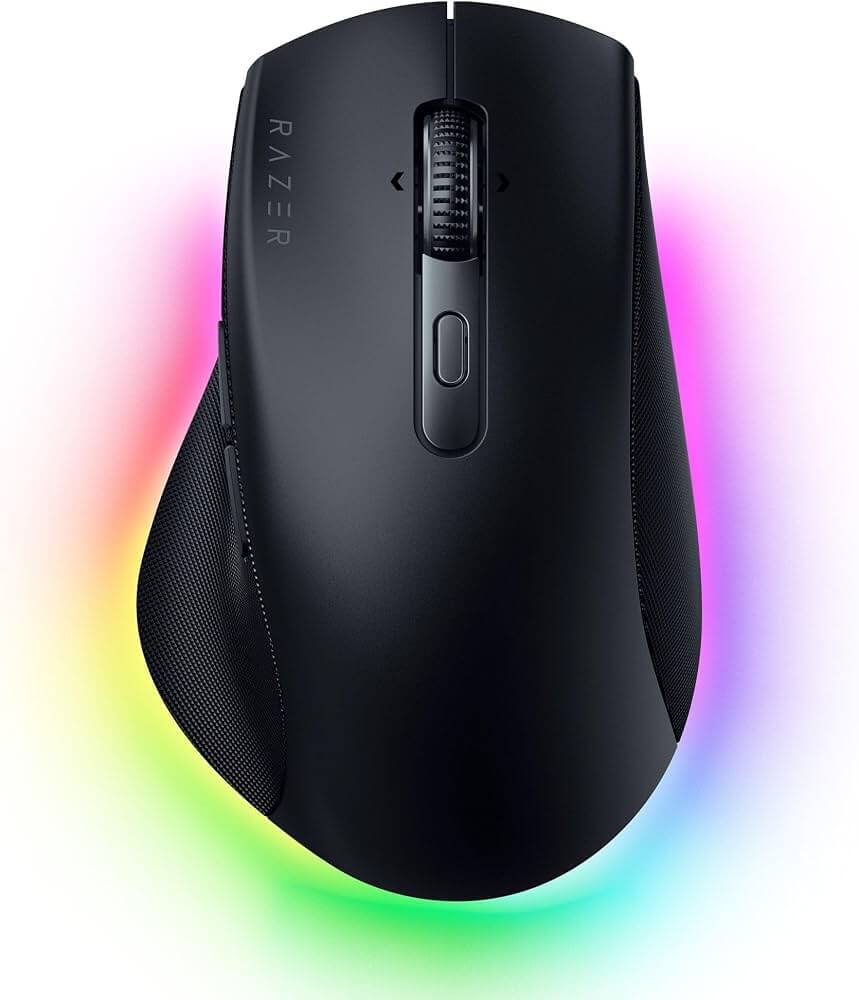
The Razer Pro Click V2 is a good middle ground for people who use the same computer for AI-assisted work and gaming. It has an ergonomic design with an extended thumb rest, a dual-mode scroll wheel, multi-device connectivity, and up to nine programmable controls – for those who love buttons at the reach of their fingertips.
It also includes AI Prompt Master that is bundled with their Synapse 4 software. You can activate the AI prompt by holding the scroll wheel for a second. The feature is designed to work with ChatGPT and Microsoft Copilot, even with their free accounts.
This is a more interesting approach than putting an enormous AI logo on the mouse. A programmable control can be useful for AI today and something completely different tomorrow. You could use it to open a prompt window, paste selected text, summarize an article, or launch a wordprocessor. When you finished, you can switch back to a normal mouse profile for gaming.
The Pro Click V2 is not as understated as a typical office mouse. It has RGB lighting, and the Razer Synapse software takes some time to learn. That may not bother gamers, but people who want a quiet office mouse may prefer something else.
Good for: people who want one mouse for AI work, office tasks, and gaming.
Kensington Expert Mouse – If You Prefer a Trackball
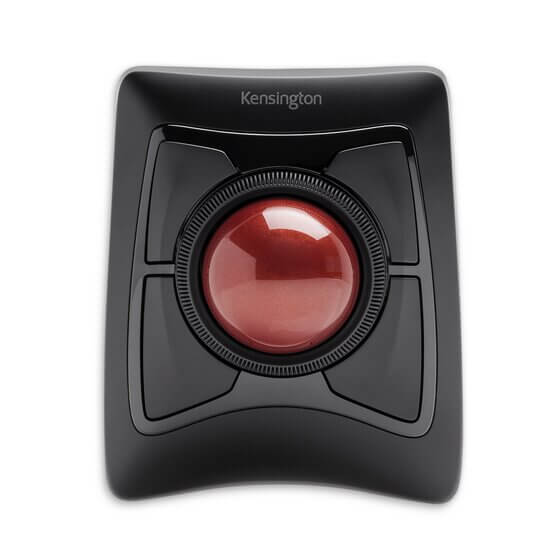
A trackball can be surprisingly good for AI work. With a regular mouse, you move your whole hand across the desk while scrolling and selecting text. With the Kensington Expert Mouse Wireless, your hand stays in one place while your fingers move the large ball.
Kensington’s software lets you customize all four buttons and adjust cursor speed. It also has a scroll ring around the ball, which can feel excellent when moving through long pages and lengthy AI answers.
This is not an instant recommendation for everyone. Trackballs have a learning curve, and some people never enjoy them. But if you have a small desk, limited arm movement, or discomfort from constantly sliding a mouse around, it is worth trying.
A trackball also changes the way you think about AI shortcuts. You can assign the buttons around the ball to actions such as opening a chatbot, copying selected text, or switching between browser tabs. The setup is less flashy than a dedicated AI button, but it can be more flexible.
Good for: people who want, well, a trackball.
Razer Basilisk or Logitech G502: The Button-Heavy Alternatives
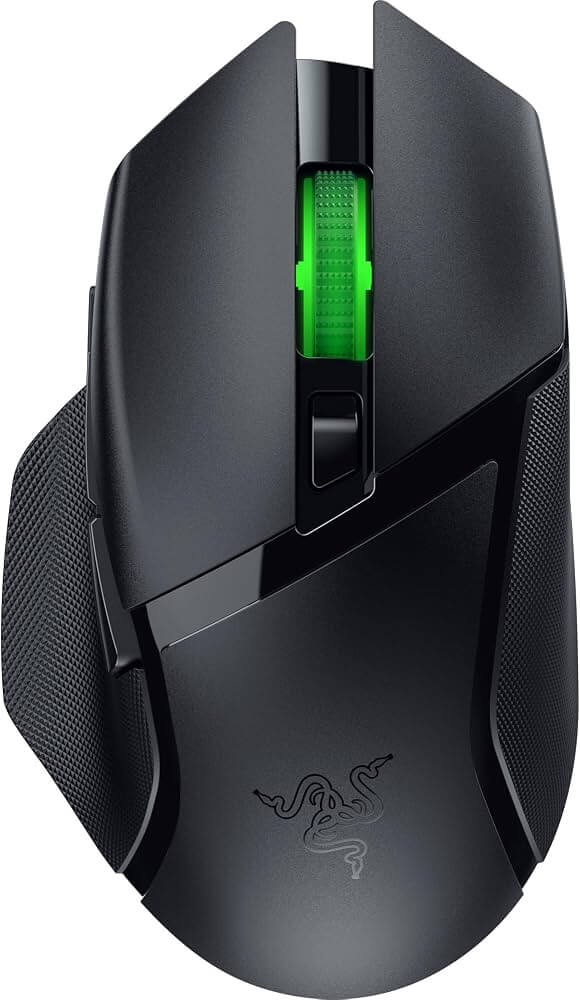
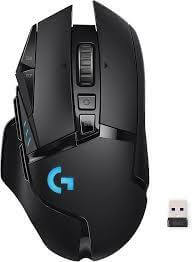
If you like having a button for everything, look at a productivity-friendly gaming mouse such as the Razer Basilisk or Logitech G502. These mice are built for fast input, but their extra buttons can be useful for AI workflows too.
You could assign buttons to open your favorite chatbot, paste plain text, start voice typing, or run text expansion shortcuts. The exact setup depends on the software you use, but the basic idea is simple – you use the mouse’s extra controls for the actions you repeat all day.
The compromise is size and complexity. Gaming mice can be heavier, their software can feel busy, and the shapes are not comfortable for everyone. They are also often designed around a right-handed grip. On the other hand, they are a good choice if you already own one and do not want to buy a separate “AI mouse.”
Several of these models also show up in current work-mouse testing and comparison lists, which is a reminder that a mouse does not need an AI label to be useful for AI work.
Good for: people who want lots of programmable buttons and do not mind gaming-style hardware.
Final Picks
For people who spend most of the day reading and scrolling, I would put the Rotary Mouse near the top of the list. Well, probably because I created the mouse and it does serve its AI purposes, at least for me. Its design is unusual, but that is also the point. It gives long AI conversations and documents a different, potentially less tiring way to navigate.
If you specifically want a button that opens an AI tool, look at the Signature AI Edition M750. If you want to combine office work with gaming, the Razer Pro Click V2 is the more flexible choice.
And if your wrist is the real problem, skip the AI branding and choose a vertical mouse or Kensington trackball instead.
The funny thing is that the best AI mouse may not be the one with the most AI features. It may simply be the mouse that lets you keep reading, selecting, scrolling, and thinking without getting in your way. For long AI conversations, that is probably the feature that matters most.