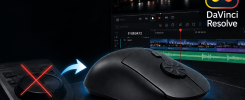
Scrubbing through a timeline in Adobe Premiere often comes down to one thing – control. Traditionally, that level of control comes from a shuttle controller, but not everyone is willing to fork out around $100 for one, or wants another piece of hardware sitting on their desk.
That’s where the Rotary Mouse comes in. By combining a standard mouse with a built-in jog wheel, it introduces a more fluid, hands-on way to navigate your timeline without a hefty price tag. It can function as an intuitive jog wheel replacement, without the need for extra setup or retraining your muscle memory.
In this guide, we’ll walk you through how to use the Rotary Mouse in Premiere Pro to improve your editing speed and control. If you prefer a visual walkthrough, you can also check out the video tutorial below.
Scrubbing Timeline
Place your cursor over the timeline in Premiere, then rotate the wheel counterclockwise to move forward and clockwise to move backward. That’s it! You don’t need to hold down any button on the keyboard. See the GIF animation below.

Zooming In/Out of Timeline
You can simply hold down the Alt (on Windows) or Option (on Mac) button and turn the rotary wheel anti-clockwise and clockwise to zoom. That’s clockwise to zoom in and anti-clockwise to zoom out.

Adjusting Track Heights
If you’re working with multiple tracks and need a clearer view of thumbnails or waveforms, hold the Shift key, hover your cursor over a track, and spin the wheel. The track height will expand or shrink based on the direction you rotate. See below.

Scrubbing The Source Viewer
A unique scroll wheel feature in Premiere Pro lets you scrub through your footage directly in the source monitor. Simply hover your cursor over the source viewer and rotate the wheel to move through the clip frame by frame. The direction of your scroll controls playback direction – counterclockwise to play forward, anti-clockwise to go backward. This lets you quickly scan forward or backward without pressing any buttons. This makes it easy to preview shots, find precise in/out points, and navigate clips with a more tactile, intuitive feel.
Conclusion
Using the Rotary Mouse can save you a lot of time and effort when editing with Premiere. We look forward to more scroll wheel functions in the next versions from the Adobe team to help you enhance your productivity.