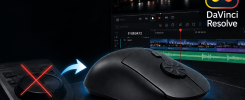
When we set up a pop-up booth at the Digital Media City in Seoul, we had the privilege of attracting some professional video editors to our booth. They are mainly working for established media companies in the vicinity, such as YTN (equivalent of CNN of South Korea), Channel A, MBC and more.
They were particularly interested in the performance of our rotary scroll wheel and found it to be a fitting tool for their video editing work. In fact, many of them mentioned that this scroll wheel can efficiently scrub timelines in DaVinci Resolve, Adobe Premiere Pro, and Final Cut Pro. Most of these professional editors still rely on conventional vertical scroll wheels, so the rotary wheel feels like a game-changing upgrade. That’s why we were able to sell some early units to several video editors and a production director.
Some said it can replace an expensive jog wheel, while some feel it’s like a mouse with a built-in shuttle controller.
Let’s put things into perspective by watching the video below that describes how to use a standard scroll wheel on DaVinci Resolve, or other similar video editing software.
Scrubbing Timeline
Scrubbing, in the video editing context, means manually moving through footage, often frame by frame or at variable speed, in order to find exact moments or clips. Most video editing professionals, like Philip Peck and those working at DMC, are using a standard scroll wheel to scrub, which means constant flicking up and down of the index or middle finger. Imagine having to flick for hours in a day.
That’s where the rotary mouse comes in. Instead of constantly flicking (and straining) your finger, you can rotate the wheel in a smooth circular fashion. It’s like making a stirring motion on your mouse while seeing your timeline flying by.
To do this in Adobe Premiere Pro, you just need to place your mouse cursor on the timeline panel and spin the rotary wheel counterclockwise to move the timeline forward. To move backward, simply rotate clockwise. You can perform the same action in DaVinci Resolve to scrub, except that you need to hold down the Ctrl or Command key.
Zooming In and Out of Timeline
Since Premiere Pro and DaVinci Resolve let you zoom in and out of the timeline by using the mouse’s scroll wheel, you can simply hold down the Alt (on Windows) or Option (on Mac) button and turn the rotary wheel anti-clockwise and clockwise to zoom.
Changing Height of Tracks
Video editing professionals often want to change the height of video or audio tracks to get better precision when cutting and clearer audio waveform visibility. This becomes even more important when working with multiple stacked tracks, where limited space makes clips harder to see and edit precisely.
To change the height, hover over the particular track, hold down the Shift button, and stir the rotary wheel to move the height of the track.
Zooming In and Out of Source Monitor (Source Viewer)
One lesser-used feature is perhaps the zooming in and out feature on the source monitor. Sometimes, you may need a closer view of a specific moment, so to do that, you can just scroll the wheel counterclockwise to zoom in on the source monitor. Do the reverse to zoom out.
Conclusion
We’re grateful to have met the video editing professionals, and their feedback has introduced us to one more compelling use case for your rotary mouse. The good thing is that DaVinci Resolve and Premiere Pro often share the same functionality when it comes to using the scroll wheel. Thus, regardless of the video editing application you are using, the rotary mouse can be an affordable upgrade to make your video editing work more productive. We shall be releasing some in-depth tutorials on how to specifically use the rotary scroll wheel on specific video editing software. Stay tuned!